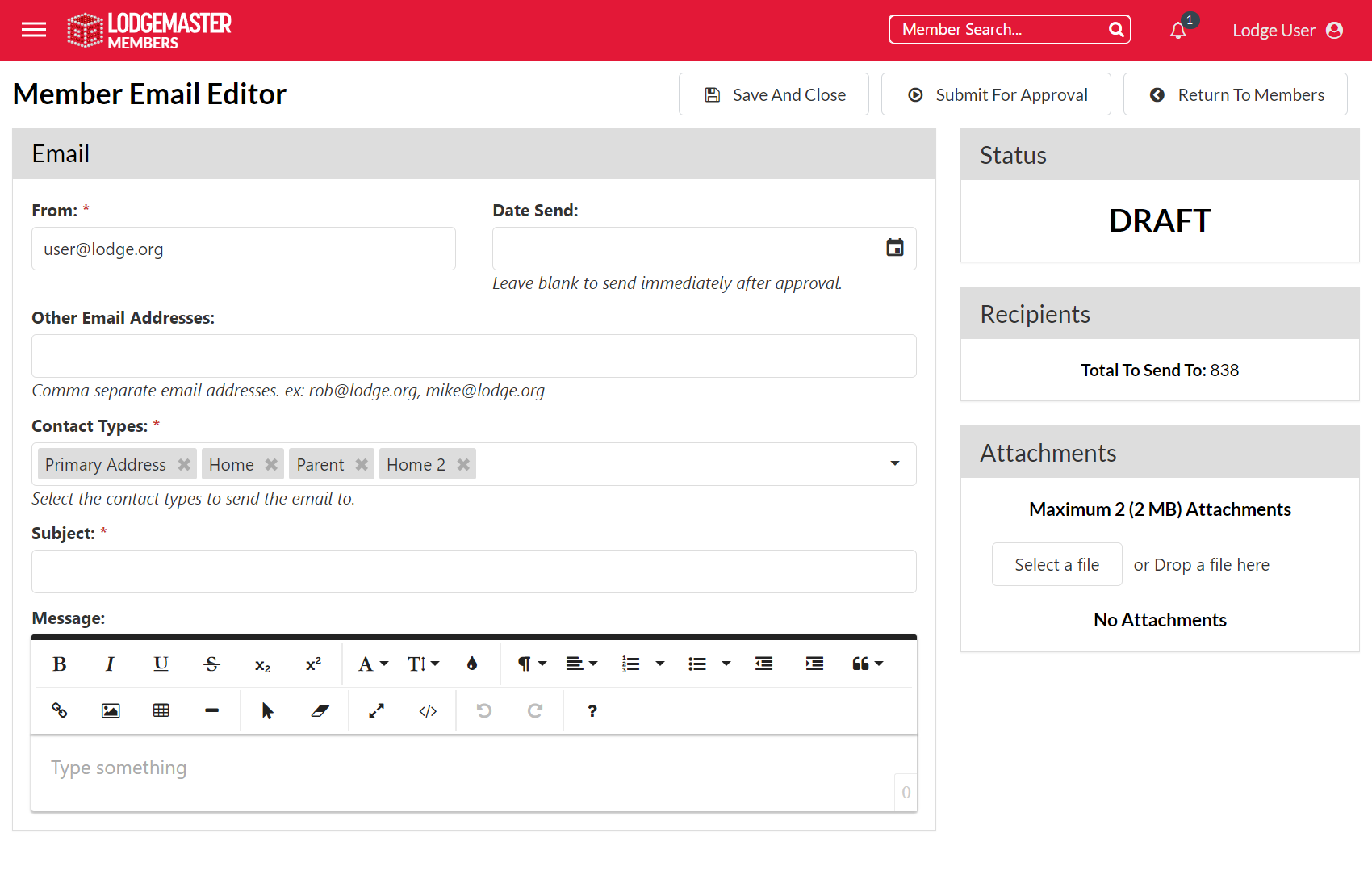
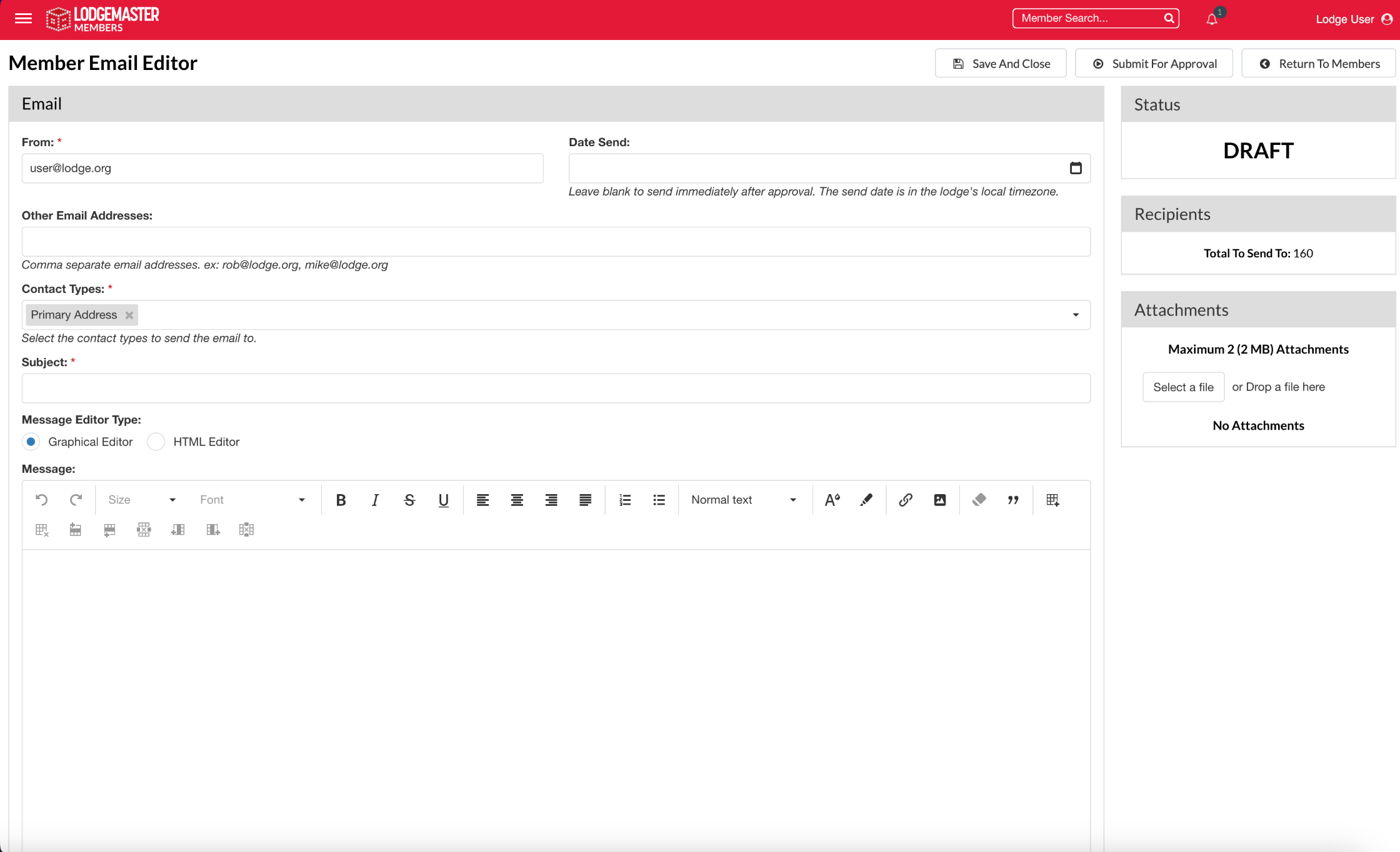
This leads you to a page to enter the details for the email. The 'From' field is where you want replies sent if someone replies to the email. | Note |
|---|
| The emails sent by LodgeMaster are not well-marked as to who they came from (the From address you supplied is only in the Reply-To header, which some email clients don't show) – the email's From line will read: "[Lodge Name] Lodge, OA" <no-reply-###@lodgemaster.oa-bsa.org>), so it will always be a good idea to put your name and position at the bottom of the email so the recipient will know who sent it. See the example in the screenshot above. |
The 'Date Send' field can be used to set a future send date if you want the email to be scheduled to send at a later time. If you want the email to be sent immediately upon approval, leave this field blank. The 'Other Email Addresses' field is used if you want to explicitly set additional email addresses the email should be sent to. This is helpful in cases where you are emailing a group of users not including yourself but you want to receive a copy of the email. The 'Contact Types' field is used to set which email addresses . in a members' records the email should be sent to. This field is addressed in more detail in the following section. 'Subject' and 'Message' should be obvious. As of OALM 3.3.6, HTML emails can now be sent through the email client, and this is the default behavior in OALM4. | Info |
|---|
| As of OALM 3.3.5, the subject line will be preceded with "[Lodge Name] Lodge, OA -" and will be followed by what is input in the subject line. |
| Note |
|---|
| title | HTML Email Editor and macOS |
|---|
| In recent versions of macOS, you may find that some common keyboard shortcuts you're used to, like "Command-B" for bold-faced text or "Command-I" for italic text, don't work as they're supposed to. In these cases, pretend you're on a PC and try using the "Control" button instead of the "Command" button to execute the shortcut. It should work properly with that little switch. This note is from the OALM3 documentation and may or may not still apply. |
In the right sidebar is a section labeled Attachments. If you need to attach a file to the email, such as an event flyer, that is done there. Click the Select a file button, then pick the file. LodgeMaster will only allow certain filetypes, so if the file you want is grayed out, it probably doesn't like that file format. We recommend using PDF whenever possible, as many people don't have access to MS Word or other tools often used to create flyers. Note there is a maximum of 2 attachments not to exceed 2 MB in size. |