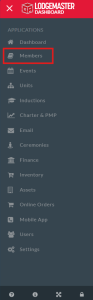
The Lodgemaster application comes equipped with views that will help new users understand lodge membership in different ways. Experienced users can create Custom Views to see lodge members in a tailored way.
The following views are available to all new Lodgemaster users:
The "Custom Views" section of "Member Views" allows experienced Lodgemaster users to tailor their member viewing experience. Lodgemaster Subject Matter Experts (SME) can also create custom views and share them with other users within your lodge. If there is a particular way that your Lodge Chief, Vice Chiefs, or other youth officers and chairs like to see member data - this is the perfect way to create a seamless experience for those users.
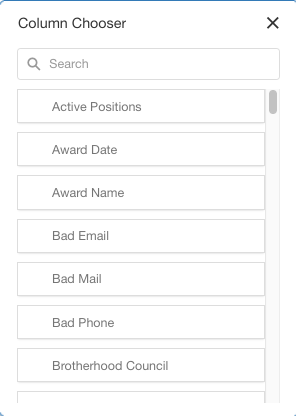
Custom Views allow SMEs to use Advanced Filtering and add or remove any available columns in the Column Chooser.
Advanced Filtering allows a targeted view to be created for specific purposes, such as a group based on positions (e.g., various Section Conference Chairs, so that an email can be sent to all of those helping to host an upcoming event and their advisers without having to find all of their email addresses each time). Learn more about Advanced Filtering here: Grids, Views, and Filters#AdvancedFilters
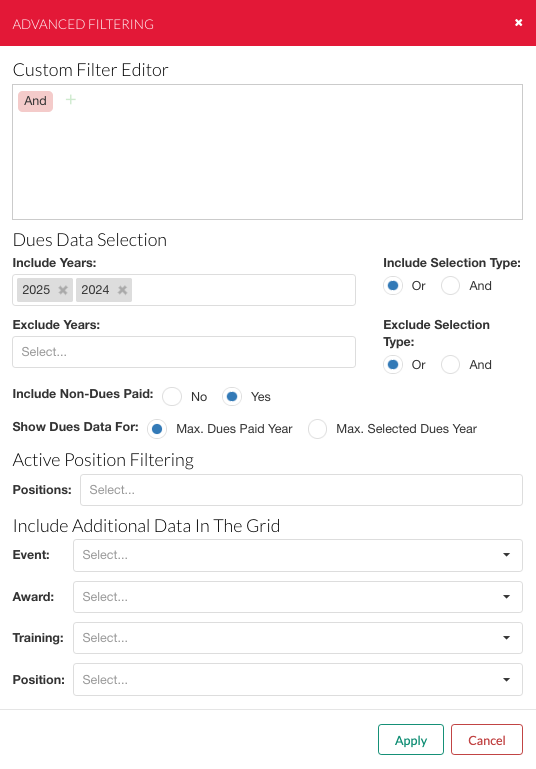
Learn more about the Column Chooser here: Grids, Views, and Filters#AddingorRemovingColumns
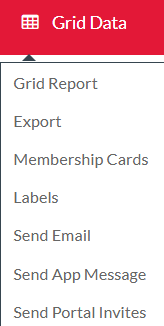
All options in this menu operate on the data currently visible in the grid. Set the filters or the view to match the people you want to be included in the operation before you choose it.
Generate a preformatted report suitable for printing or saving to PDF, showing the data in the grid.
Export the grid data to Excel or CSV files.
Print membership cards for the members shown in the grid, assuming their dues are paid.
See Printing Membership Cards for detailed instructions.
Prints or exports mailing labels for the members shown in the grid.
Send email to the members listed in the grid.
Since you can also send emails from the Event Manager, the Email compose window is covered at Sending Email.
Send app message to the members listed in the grid.
Since you can also send app messages from the Event Manager, the app message compose window is covered at Sending App Messages.
See Scouting America Membership Audit and SYT Verification Tool
See Import Members
The list of fields you can import using the Import Dues function are as follows:
This can be used to import Scouting Member IDs in bulk.
The spreadsheet file you upload must have both the OALM ID and Scouting Member ID columns. Any other columns will be ignored during import.
An easy way to produce a spreadsheet is to set up filters in the Member grid to list the members whose Scouting Member IDs you need to import, ensure Scouting Member ID column is present, and then export the Grid Data. On the Export screen, there is an option to Export Unique Member ID: choose Yes on that. This will add the OALM ID column to the exported data.

Your staff adviser or other council employee with access to ScoutNET can then match members and fill in their Scouting Member ID numbers on the resulting file export.
Once you have the Scouting Member ID numbers filled in, use the Import Scouting Member IDs tool to upload the file back into LodgeMaster and update the member records.
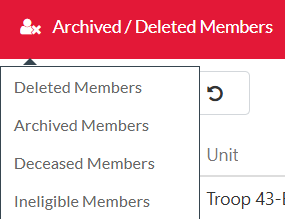
Deleted
Archived
Deceased
Ineligible